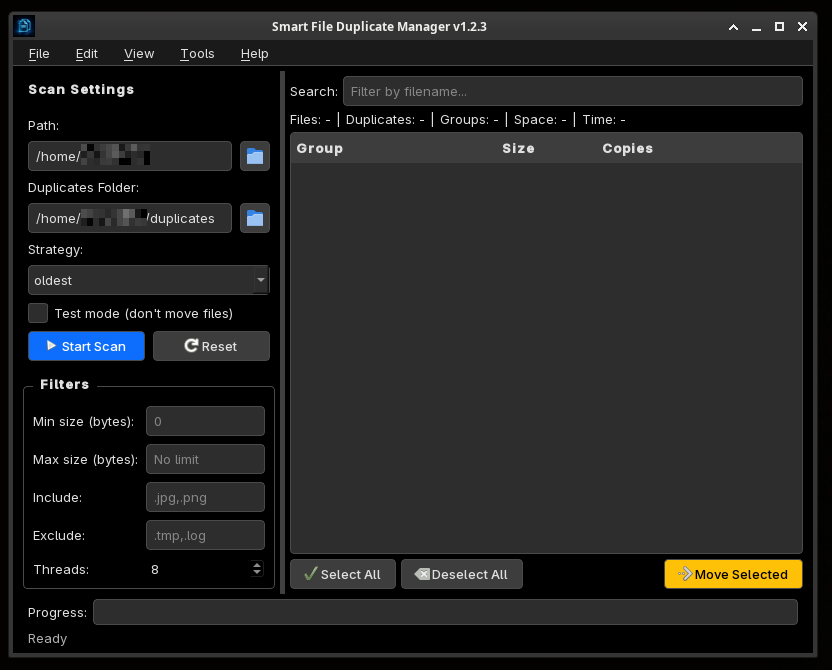
Smart File Duplicate Manager v1.2.6
App for finding and managing duplicate files
Multi-threaded scanning, hash comparison, move and restore functionality.
Smart File Duplicate Manager is an app for finding and managing duplicate files. It's written in Python using PyQt6.
- Scan the selected folder and all subfolders
- Compare files by size, then by hash (xxHash, or MD5 if none)
- Multi-threaded scanning (uses all available processor cores)
- Filters by file size and extension
- Automatically determines the primary file in each group based on strategy: Oldest/Newest, Smallest/Largest, Shortest/Longest Path
- All other files in the group are automatically marked as duplicates
- Manually select files in each group (checkboxes)
- Ability to change the primary file in a group
- Globally select all duplicates / deselect all
- Move — duplicates are moved to the destination folder in a subfolder with the date and time. A JSON log with all information about the moved files is saved in the folder.
- Test Mode — simulates actions without actually moving
- View all previously moved files from JSON logs
- Selective file restore to their original folders
- Automatic log update and deletion of empty folders
- Three main panels: Left — scan settings, Center — list of duplicate groups with statistics, Right — group details and file list with checkboxes
- Search by file name
- Progress bar and status bar
- Confirmation of all important actions
- Hotkeys for basic operations
- Dark theme
Ctrl+Shift+O — Select Scan Folder
Ctrl+Shift+D — Select Duplicates Folder
Ctrl+R — Start scan
Ctrl+Shift+C — Cancel scan
Ctrl+X — Reset
Ctrl+Q — Exit
Ctrl+A — Select all duplicates
Ctrl+Shift+A — Deselect all
Ctrl+T — Test mode
Ctrl+I — Show statistics
Ctrl+L — Clear search
Ctrl+M — Move selected files
Ctrl+Shift+R — Restore files
Ctrl+Shift+F — Open duplicates folder
Ctrl+/ — Keyboard Shortcuts
F1 — Documentation
The application allows you to create desktop entries directly from the menu:
- Go to File → Create Desktop Entry
- Choose locations: Application Menu or Desktop
- Creates
.desktopfile with proper configuration
Available on Linux systems with desktop environments that support .desktop files (GNOME, KDE, XFCE).
- Language: Python 3.8+
- GUI: PyQt6
- Hashing: xxhash (optional), MD5
- Platform: Windows / Linux / macOS
- License: BSD 3-Clause
- Python 3.8 or higher
- PyQt6
- xxhash (optional — for faster hashing)
- Windows / Linux / macOS